How to Install Ollama on a VPS: Complete Step-by-Step Guide (2026)
Running Ollama on your laptop is fine for experimenting. Here's the full, command-by-command walkthrough for installing it on a real Ubuntu VPS, running your first model, and securing it before you expose it to anything.
Written by
CODEWITHMS
Published on
Read time
16 min read
Running AI models on your own infrastructure gives you more control over your environment, your data, and the models you run. One of the easiest ways to get started with self-hosted AI is Ollama — and instead of running it only on your personal laptop, installing it on a Linux VPS keeps it available remotely, which matters if you're building automations, internal tools, or an API-based app around it.
This is the full, command-by-command walkthrough: installing Ollama from scratch, configuring it to run as a service, downloading your first model, testing it, and preparing the server for secure remote access.
Haven't picked a VPS yet?
Read our Best VPS for Ollama guide first — model sizing, RAM requirements, and honest provider picks — then come back here for the install.
Quick answer
On a Linux VPS, install Ollama with its official script: curl -fsSL https://ollama.com/install.sh | sh. Then verify with ollama --version, check the service with systemctl status ollama, pull a model with ollama pull, and test it with ollama run.
What is Ollama?
Ollama is a runtime for downloading, managing, and running open AI models on your own computer or server, through a command-line interface and a local API. That API is available on port 11434 by default, and Ollama also exposes an OpenAI-compatible endpoint for tools built around that format.
The key distinction: Ollama is the runtime, and the model is something you download separately through it. ollama pull downloads a model; ollama run starts an interactive session with it.
Why run Ollama on a VPS instead of your laptop?
Running Ollama locally is fine for experimentation, but a VPS makes sense once you want an AI service that doesn't depend on your personal computer staying on. A VPS gives you:
- Persistent availability — the server stays up independent of your laptop
- Dedicated CPU and RAM (and optional GPU, depending on the provider)
- Centralized model storage instead of duplicating downloads across machines
- An API other applications, automations, or internal tools can call
- A clean separation between your AI workloads and your personal machine
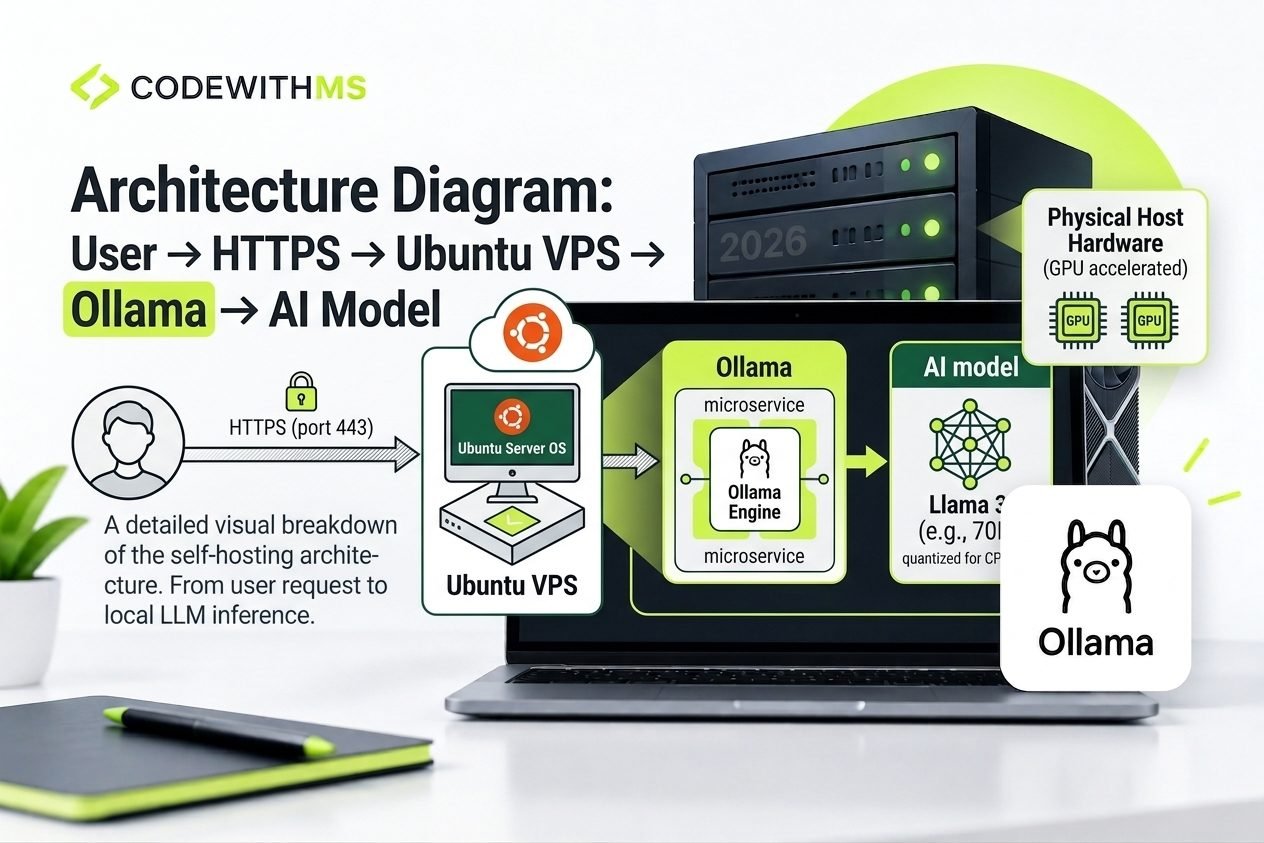
The resulting architecture is simple: your application connects, over a secure connection, to a VPS, which runs Ollama, which loads the model. That's the whole shape of a self-hosted AI setup — the rest of this guide is filling in each step.
What you need before installing
- A Linux VPS — this guide uses Ubuntu (22.04 or 24.04 LTS), the most broadly supported choice
- SSH access — the server's IP address, a username, and a password or SSH key
- Enough RAM and storage for both Ollama and the model you plan to run — the model is the real resource requirement, not Ollama itself
- A model already in mind — decide what you want to run before picking specs, since a 3B model and a 70B model need completely different hardware
Recommended VPS specs by use case
There's no single correct spec — it depends on the model, quantization, context length, and whether you're using CPU or GPU. As a starting point:
| Use case | Suggested starting point |
|---|---|
| Testing / small models | 4 vCPU, 8 GB RAM |
| Regular small-to-medium models (7B–8B) | 4–8 vCPU, 16 GB RAM |
| Larger models (13B+) | 8+ vCPU, 32 GB+ RAM |
| GPU workloads | GPU VPS with sufficient VRAM for the model |
| Multiple models loaded at once | 32–64 GB+ RAM or a suitable GPU |
Treat these as starting points, not guarantees — always check the specific model's actual memory footprint before committing to a plan. For a full breakdown of provider options at each tier, see our Best VPS for Ollama guide.
Step 1: Connect to your VPS with SSH
On macOS or Linux, open a terminal and connect with your server's IP address:
ssh root@YOUR_SERVER_IPOr, if you're using a non-root user:
ssh username@YOUR_SERVER_IPFor production servers, an SSH key and a non-root administrative account are safer than relying on password-based root access — more on that in the security section below.
Step 2: Update Ubuntu
Before installing anything new, update the package index and upgrade installed packages:
sudo apt update
sudo apt upgrade -y
(Drop sudo if you're already logged in as root.) Keeping packages current avoids a lot of avoidable dependency and security issues down the line.
Step 3: Install curl
The official Ollama installer only needs curl — you don't need Python, pip, or Git just to install Ollama, whatever some other tutorials claim.
sudo apt install curl -y
curl --version
Step 4: Install Ollama
Run Ollama's official Linux install script:
curl -fsSL https://ollama.com/install.sh | sh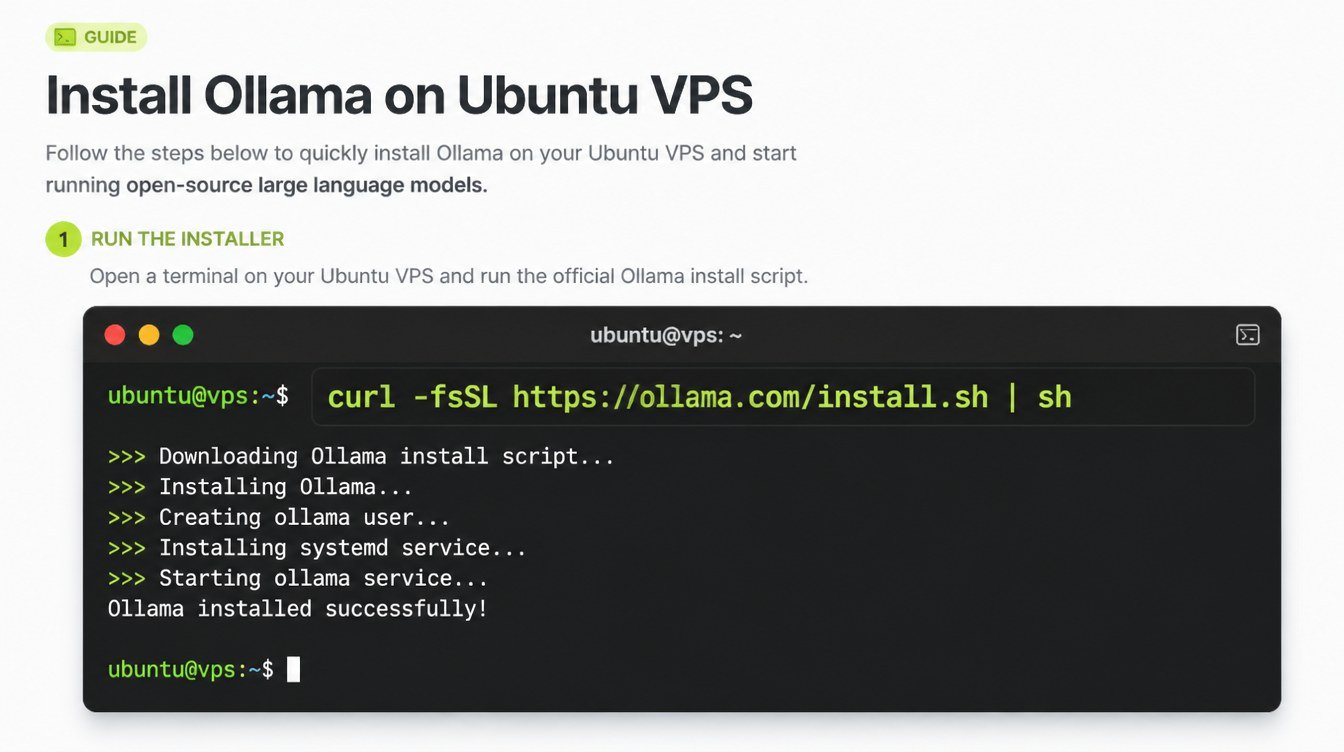
Once it finishes, confirm the ollama command is available:
ollama --versionA version string back means the installation succeeded. The exact version number changes over time, so don't hard-code it into any documentation or scripts.
Step 5: Verify the installation
which ollama
ollama --version
ollama --help
If these all return sensible output, Ollama is installed and available from your VPS's terminal.
Step 6: Check the Ollama service
On a VPS, you want Ollama running as a background service rather than something you manually start each session. Check its status:
sudo systemctl status ollama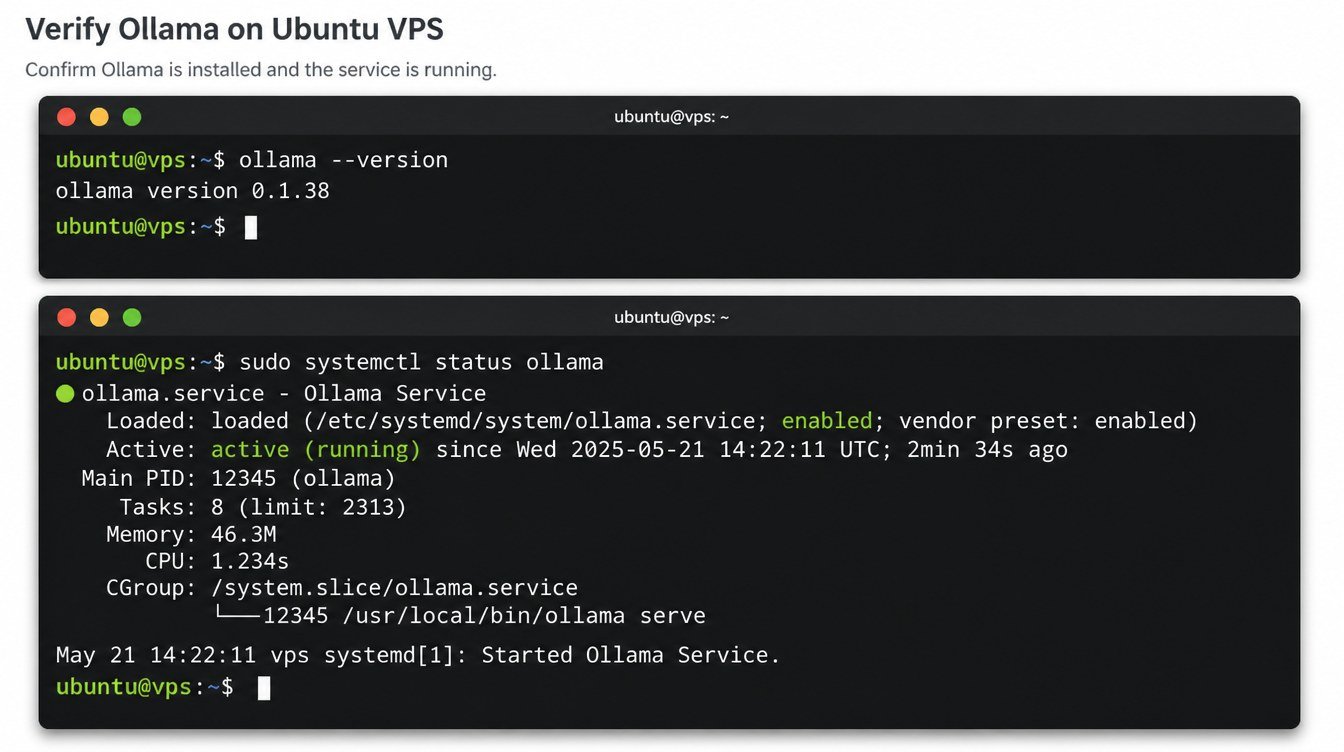
| Task | Command |
|---|---|
| Check status | sudo systemctl status ollama |
| Start | sudo systemctl start ollama |
| Stop | sudo systemctl stop ollama |
| Restart | sudo systemctl restart ollama |
| Enable at boot | sudo systemctl enable ollama |
| Disable at boot | sudo systemctl disable ollama |
Step 7: Download your first model
Installing Ollama doesn't give you a model to run — that's a separate download, sized to whatever your VPS can handle (see the RAM section below if you haven't sized this yet):
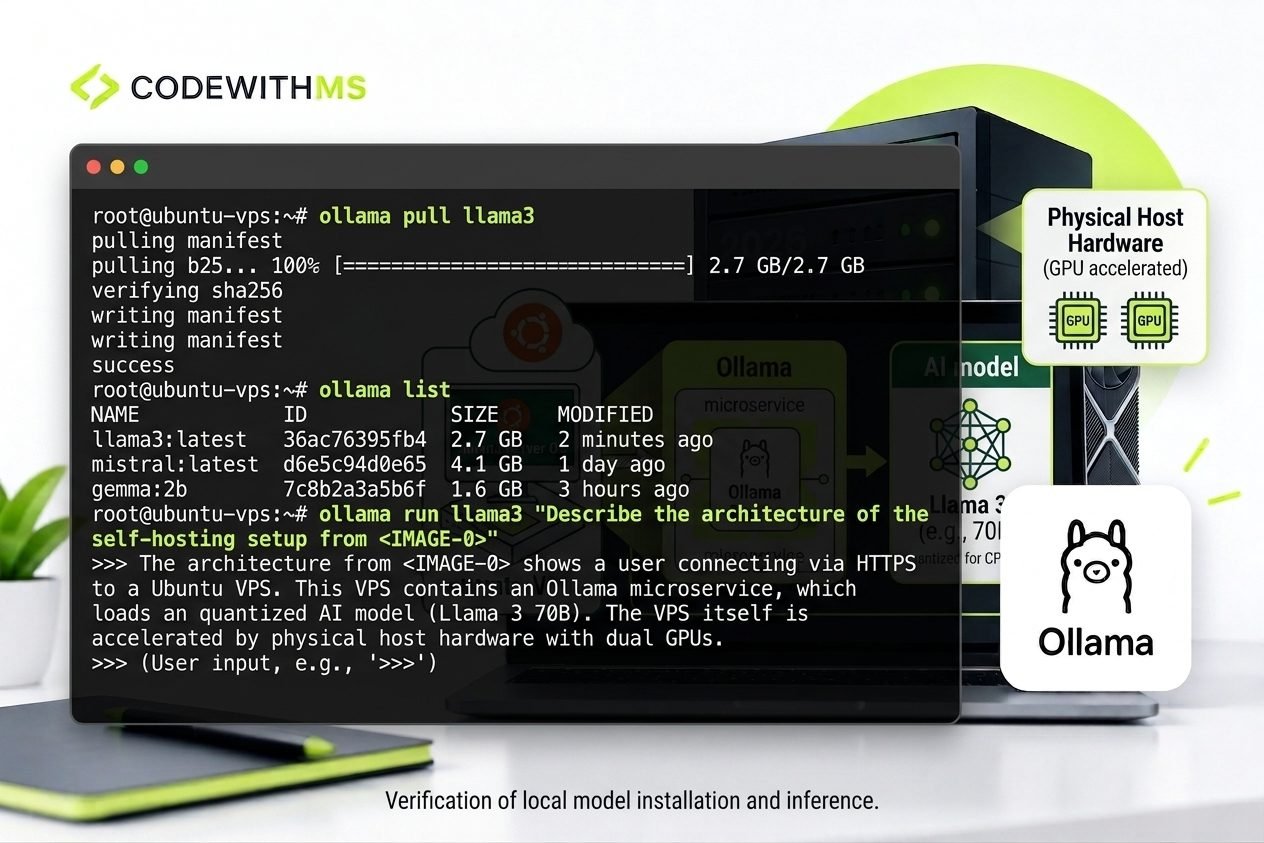
ollama pull llama3.1:8bCheck what's downloaded locally at any point with:
ollama listModel files can be large, and if you plan to keep several around, don't size your disk based on the OS alone — leave headroom for the OS, Ollama, logs, and future downloads on top of the models themselves.
Step 8: Run your first model
ollama run llama3.1:8bThis drops you into an interactive prompt — try asking it something simple. A response back means your installation works end to end.
Step 9: Test the Ollama API
Ollama's local API is available on port 11434 by default. From the VPS itself, confirm it's responding:
curl http://localhost:11434/api/versionYou can also send an actual chat request to it directly:
curl http://localhost:11434/api/chat \
  -H "Content-Type: application/json" \
  -d '{
    "model": "llama3.1:8b",
    "messages": [
      { "role": "user", "content": "Explain what a VPS is in one paragraph." }
    ]
  }'
Step 10: Should you expose port 11434 publicly?
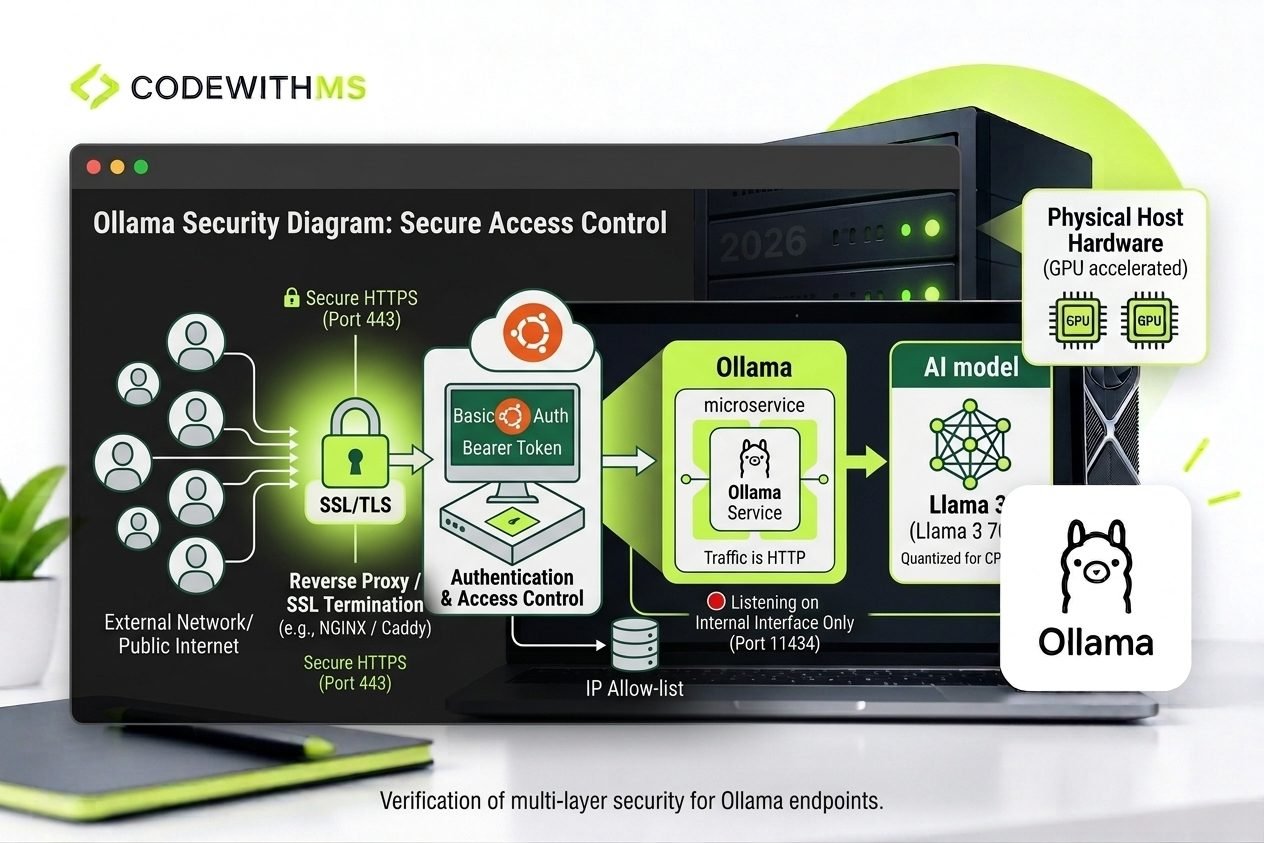
This is where an Ollama VPS gets genuinely useful — connecting applications to its API instead of only talking to it over SSH. But don't treat Ollama's API port like a public website port. It has no built-in authentication, so anyone who finds it can send it requests and burn your CPU.
The standard, safe architecture puts a reverse proxy in front of it: traffic hits HTTPS on port 443, gets terminated and authenticated by Nginx or Caddy, and only then reaches Ollama on its internal port.
Step 11: Secure your Ollama VPS
- Use SSH keys instead of password authentication wherever possible
- Only open the ports you actually need — typically 22 (SSH), 80 (HTTP), and 443 (HTTPS); 11434 doesn't need to be public
- Put Ollama behind a reverse proxy with HTTPS if anything outside the server will call it
- Add authentication (basic auth or an API key check) at the proxy — an exposed API isn't safe just because it isn't linked anywhere
- Keep Ubuntu patched with regular sudo apt update && sudo apt upgrade -y
- Monitor CPU, RAM, disk, and request volume — resource exhaustion can look exactly like a broken service
CPU vs. GPU for Ollama
A CPU-only VPS works fine for experimentation, smaller models, development, and low request volumes — the trade-off is that larger models respond noticeably slower. A GPU can dramatically improve inference speed, but GPU selection isn't just about having one: VRAM, driver support, and the model's own quantized size all matter more than a marketing performance number. For large models, VRAM is almost always the limiting factor, not raw GPU speed.
How much RAM does Ollama actually need?
There's no single answer — it depends on the model's parameter count, quantization, context length, and how many models you keep loaded at once. The reliable approach is to choose the model first, then size the VPS around it, rather than picking a VPS and hoping something fits. Our Best VPS for Ollama guide has a full RAM-by-model-size table if you haven't sized this yet.
Useful commands for checking what you're working with:
free -h        # RAM and swap
lscpu          # CPU info
df -h          # disk space
nvidia-smi     # GPU (NVIDIA systems only)
Troubleshooting common problems
"ollama: command not found"
The install likely didn't complete. Check with which ollama, and if nothing comes back, re-run the installer: curl -fsSL https://ollama.com/install.sh | sh, then ollama --version again.
The service won't stay running
Check status with sudo systemctl status ollama, try sudo systemctl restart ollama, and if it still fails, read the actual error instead of repeatedly restarting it:
sudo journalctl -u ollama -n 100 --no-pagerA model won't download
Check available disk space (df -h) and that the VPS can actually reach the internet (curl -I https://ollama.com). Large models need real headroom — check storage before pulling another one.
Responses are extremely slow
Usually CPU-only inference on a model that's too large for comfortable CPU speed, insufficient RAM forcing swap, or another process competing for resources. Compare your actual workload against your VPS specs before assuming Ollama itself is broken.
Works over SSH but not from another application
First confirm it works locally with curl http://localhost:11434/api/version. If that succeeds but an external app can't reach it, the problem is almost always firewall rules, reverse proxy config, DNS, or HTTPS — not Ollama itself. Don't open port 11434 publicly as a shortcut to "fix" this.
Updating and uninstalling Ollama
To update, just re-run the installer — it installs the current release over the existing one:
curl -fsSL https://ollama.com/install.sh | sh
ollama --version
To remove it, stop and disable the service first, then follow the cleanup steps for however you installed it — and make sure you don't still need your downloaded models before deleting anything, since removing the runtime and removing model data are separate concerns:
sudo systemctl stop ollama
sudo systemctl disable ollama
Can you run Ollama on a cheap VPS?
Yes, for testing, learning, smaller models, and low-volume use — a budget CPU VPS handles that fine. It's a different story once you want larger models, high throughput, multiple concurrent users, or several models loaded at once; at that point you need meaningfully more RAM, CPU, or a GPU. This is why sizing to the workload matters more than chasing the cheapest listed price.
Installing Ollama on Hostinger specifically
Everything above works on any Ubuntu VPS, Hostinger included — the manual install script doesn't care which provider you're on. Hostinger also offers an Ollama-oriented VPS template, which gets you a preconfigured environment instead of running every step by hand. For a first server, the manual route is worth doing at least once anyway: you'll actually understand how the pieces fit together, which makes troubleshooting later much less mysterious.
Get Hostinger VPS
Our pick for a first Ollama server — the KVM 4 tier has enough RAM and cores for an 8B model, and this whole guide works on it unmodified.
Frequently Asked Questions
Can I install Ollama on a VPS?
Yes — any compatible Linux VPS works, using the official install script: curl -fsSL https://ollama.com/install.sh | sh. After that you can download and run any supported model.
What OS should I use for Ollama on a VPS?
Ubuntu, ideally a current LTS release (22.04 or 24.04) — it has the broadest server and package support, and every command in this guide targets it directly.
Does Ollama require a GPU?
No. It runs fine on CPU-only systems; a GPU improves inference speed for models that fit its VRAM, but it's an optimization, not a requirement.
What port does Ollama use?
11434 by default, accessed locally at http://localhost:11434. It also exposes an OpenAI-compatible API. This port shouldn't be exposed directly to the public internet without a reverse proxy and authentication in front of it.
Can I access my Ollama VPS remotely?
Yes, but do it through a reverse proxy with HTTPS and authentication rather than exposing Ollama's port directly — see the security section above for the full setup.
Is Ollama free to install and use?
The Ollama runtime itself is free. You're still paying for the underlying infrastructure — VPS hosting, storage, and GPU resources if you use them.
Some links in this article are affiliate links. If you sign up through them, we may earn a commission at no extra cost to you. We only recommend providers we'd genuinely suggest regardless of commission.
Have a project in mind? Let's talk.
Whether it's a new WordPress build, a Shopify store, or an SEO strategy that actually moves rankings — our team can help you plan it out.