Best VPS for Ollama: Self-Host Local LLMs in 2026
A VPS ad will happily tell you Ollama runs great on their server. Most of the time that's only true for small models. Here's the honest breakdown of what actually fits, what it costs, and which providers make sense.
Written by
CODEWITHMS
Published on
Read time
13 min read
If you've searched for this, you've probably already noticed something: most "best hosting for Ollama" content reads like it was written by someone who has never actually run Ollama on a rented server. It lists providers, pastes in generic VPS specs, and never mentions the one thing that determines whether your setup is actually usable — the fact that almost no consumer VPS comes with a GPU.
That single detail changes everything about how you should approach this. So before any provider comparison, let's get the mental model right.
Quick answer: what you actually need
A VPS can absolutely run Ollama. What it usually can't do is run it fast, because standard VPS plans give you vCPU cores and RAM, not a GPU. Ollama runs inference on the CPU by default when no GPU is available, and CPU inference is dramatically slower than GPU inference — often the difference between a snappy chat response and watching text crawl out one word at a time.
That means the real question isn't "which VPS is best for Ollama" in the abstract. It's: which model size do you actually need, and does a CPU-only box deliver acceptable speed for that model? For small models (3B–8B parameters), the answer is often yes. For anything bigger, a standard VPS becomes a bad fit unless you specifically rent a GPU-equipped instance, which is a different (and pricier) product category entirely.
Why self-host Ollama on a VPS at all
Before the sizing math, it's worth being clear on the actual use cases, because they shape which plan makes sense:
- Privacy-sensitive workflows — internal tools, client data, or automations where sending prompts to a third-party API isn't acceptable.
- Predictable costs — a fixed monthly VPS bill instead of per-token API pricing that scales with usage.
- Background automation — connecting Ollama to something like n8n or a custom script where responses don't need to be instant, just correct.
- Learning and experimentation — running your own model server without buying a GPU workstation.
If your use case is "I want ChatGPT-speed responses for a customer-facing app," a VPS running Ollama on CPU is the wrong tool. If it's "I want a private, always-on model I can hit from my own scripts and don't mind a few seconds of latency," a VPS is a genuinely good fit.
Model size vs. hardware: the table that actually matters
Ollama's own resource footprint is negligible — it's the model you load that determines everything. Models on Ollama's library default to 4-bit quantization, and a reliable rule of thumb is roughly 0.6 GB of RAM per billion parameters at that quantization level, plus overhead for context and the OS.
| Model size | Approx. RAM needed | Realistic on CPU-only VPS? | Notes |
|---|---|---|---|
| 3B (e.g. Llama 3.2 3B) | 4–6 GB | Yes — usable speed | Good for chat, summarization, simple automation |
| 7B–8B (e.g. Llama 3.1 8B, Mistral 7B) | 8–10 GB | Yes, on 4+ vCPU / 16GB+ | Fine for background tasks; not instant |
| 13B–14B | 14–18 GB | Marginal | Workable but noticeably slow without a GPU |
| 30B–32B | 20–24 GB+ | Not recommended on CPU | Expect single-digit tokens/sec at best |
| 70B | 40GB+ RAM (quantized) | No — needs GPU | This is a GPU-instance workload, not a budget VPS one |
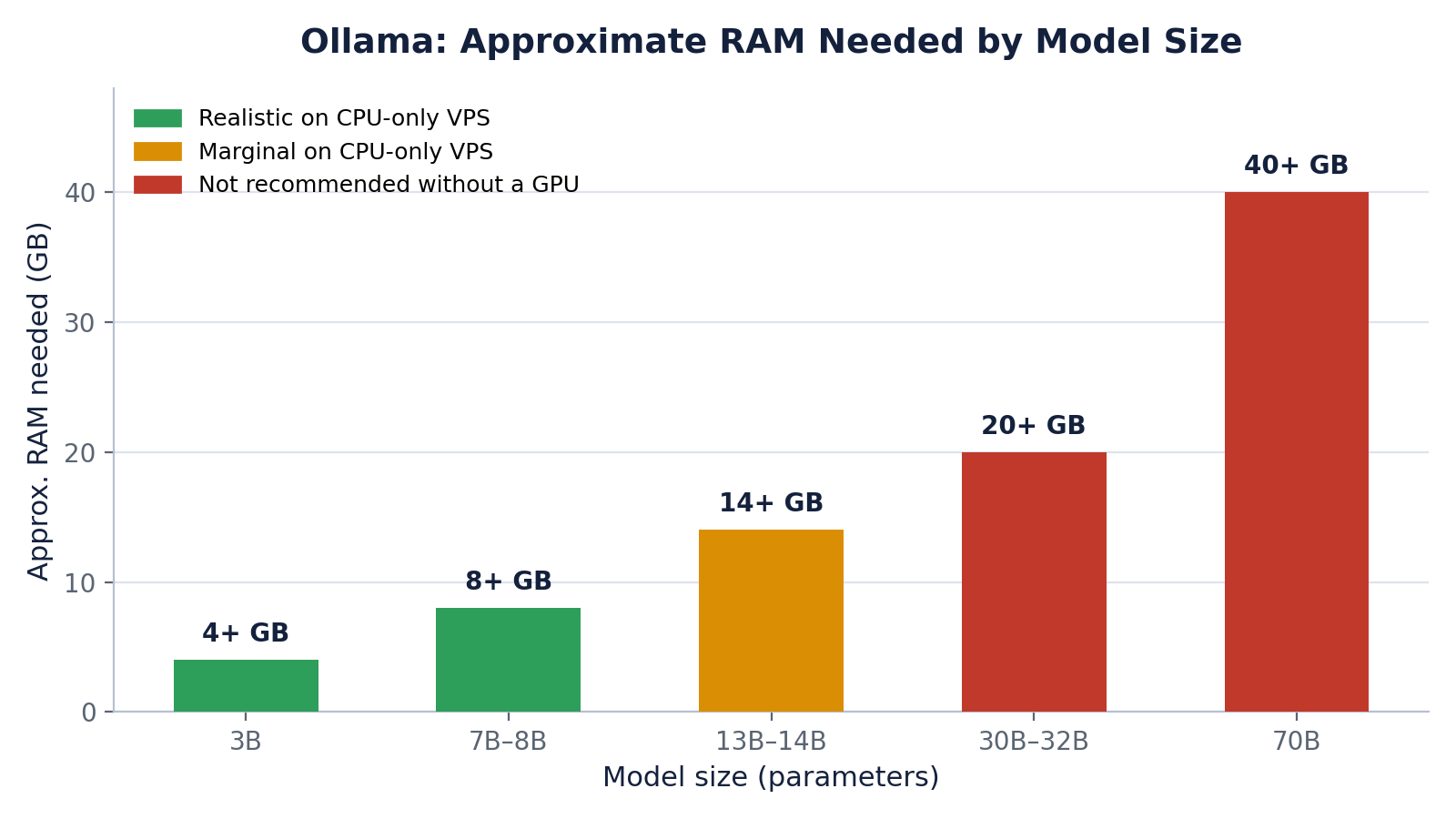
A practical buffer rule: whatever the model's download size is, plan for system RAM at least 4–8 GB above that, since the OS, Ollama itself, and any concurrent process all need headroom. If you plan to keep more than one model loaded at a time, multiply accordingly — Ollama keeps a loaded model resident in memory for as long as it's active; it doesn't free RAM between requests the way a typical web app would.
Sizing your VPS: a straightforward decision path
Rather than picking a provider first and hoping the specs work out, work backward from the model:
- Decide the smallest model that does your job well. Don't default to the biggest model you've heard of — a well-prompted 8B model handles a lot of real automation and internal-tool use cases just fine.
- Add your RAM buffer. Take the model's approximate RAM need from the table above and add 4–8 GB.
- Match vCPU cores to your latency tolerance. More cores mostly help with concurrent requests, not per-request speed — a single conversation doesn't get dramatically faster by adding cores past 4, but running Ollama alongside other services (a database, n8n, a reverse proxy) does benefit from extra cores.
- Check disk space separately from RAM. Model files range from roughly 2 GB (small quantized models) to 20+ GB for larger ones, and you'll likely want to keep two or three around while testing. Budget at least 60–100 GB of NVMe storage if you plan to experiment.
- If you genuinely need a 30B+ model, stop shopping for a "VPS" and start shopping for a GPU cloud instance. This is a different product line even at the same providers, and pretending otherwise is how people end up disappointed.
Provider comparison: what's actually worth paying for
These are general-purpose, non-GPU VPS/cloud plans suitable for the 3B–14B range described above. Specs and pricing in this market change often — treat the numbers below as a snapshot at the time of writing, and confirm current pricing before buying.
Quick answer
If you're testing Ollama for the first time and want the least friction, Hostinger's KVM 4 tier is genuinely the easiest starting point — enough RAM and cores for an 8B model out of the box, a management panel that doesn't get in your way, and pricing that stays reasonable at renewal. It's what we'd point a client toward if they asked us to size this today.
Hostinger
Cores / RAM
4 vCPU / 16 GB
Panel
hPanel
Setup
One-click app templates
The KVM 4 tier gives you enough headroom for an 7B–8B model right out of the box, and hPanel stays out of your way instead of adding its own learning curve on top of Ollama's.
Key features
- 4 vCPU / 16 GB RAM on the KVM 4 tier
- hPanel management panel with one-click app templates
- Straightforward setup for a first Ollama server
Priced to stay reasonable at renewal, not just on the intro term — worth checking against the others below at your actual commitment length.
Pros
- Enough RAM and cores for an 8B model without upgrading
- Managed panel (hPanel) without a steep learning curve
- Straightforward support if you get stuck on setup
Cons
- Not the cheapest per-GB of RAM on the market
Why we recommend it first
It's the balance of specs, ease of setup, and price that makes it the least frustrating starting point for most people running Ollama for the first time — and our top pick for this use case.
Bluehost
Cores / RAM
2 vCore / 4GB DDR5 (entry)
Storage
100GB NVMe
Hardware
AMD EPYC
Self-Managed VPS entry tier starts at 2 vCore / 4GB DDR5 / 100GB NVMe; the Business tier steps up to 4 vCore / 8GB / 200GB if you need more headroom for an 8B model.
Key features
- Full root access
- Modern AMD EPYC hardware
- DDR5 memory even on entry tiers
Noticeably pricier than the others at equivalent specs — you're paying a premium for the Bluehost name and infrastructure, not for extra RAM per dollar.
Pros
- Full root access on modern AMD EPYC hardware
- DDR5 memory standard
Cons
- Costs more than competitors at the same specs
Why choose Bluehost
Worth it if you specifically want root access on premium, modern hardware and don't mind paying more for it.
Kamatera
Entry specs
1 vCPU / 1GB RAM (customizable)
Access
Full root, self-managed
Trial
30 days, up to $100 value
A fully customizable cloud VPS — you dial in the exact vCPU, RAM, and storage combination instead of picking from fixed tiers, with data centers across North America, Europe, and Asia.
Key features
- Configure exact vCPU/RAM/storage instead of a fixed tier
- 30-day free trial worth up to $100
- Data centers across multiple global regions
- Hourly billing available alongside monthly
Custom builds start around $4/month for a 1 vCPU/1GB config, but that's not enough for Ollama — budget for roughly a 4 vCPU/8GB build to run an 8B model comfortably.
Pros
- Pay for the exact specs your model needs instead of a fixed plan
- Free 30-day trial to test sizing before committing
Cons
- Fully unmanaged — best suited to developers comfortable configuring a server from scratch
- Cheapest tier's CPU is shared/non-dedicated; size up for consistent inference speed
Why choose Kamatera
Makes sense if you'd rather dial in the exact vCPU/RAM/storage combination for your model than pick from a fixed tier, and want to test that sizing risk-free with the 30-day trial first.
ChemiCloud
Starting price
~$30/month
Panel
cPanel
Access
Full root, dedicated resources
Managed Cloud VPS starting around the $30/month range, cPanel-based, with full root access and dedicated resources.
Key features
- cPanel-based management
- Full root access
- Dedicated (not shared) resources
Positioned as a managed, cPanel-centric web hosting environment first — running an arbitrary Docker workload like Ollama needs more manual setup outside cPanel's usual workflow.
Pros
- Convenient if you already run client WordPress sites on ChemiCloud
- Dedicated resources, not shared
Cons
- Not purpose-built for Docker workloads like Ollama — expect extra manual setup
Why choose ChemiCloud
The right call mainly if you're already running client sites there and want everything under one account, rather than choosing a host from scratch purely for this project.
Getting Ollama running: the short version
This roundup isn't the full tutorial — that's a dedicated step-by-step post — but here's the shape of it so you know what you're signing up for:
- Spin up an Ubuntu-based VPS (22.04 or 24.04 LTS are the safest choices for compatibility).
- SSH in, update the system, and install Ollama with its official install script.
- Pull a model sized to your RAM (ollama pull llama3.1:8b, for example).
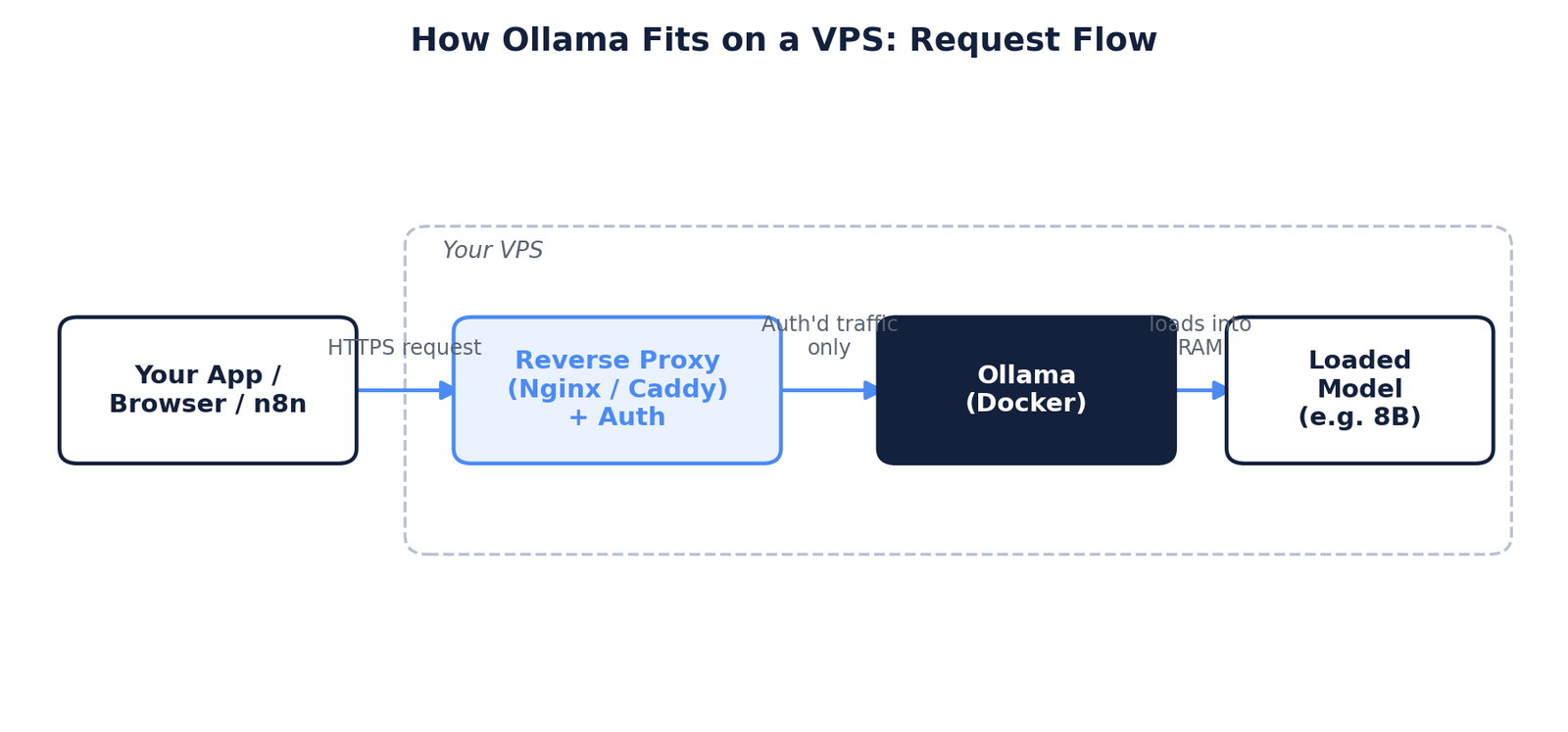
- Decide how you'll access it: locally via SSH tunnel for testing, or exposed through a reverse proxy with authentication if you want to hit it from other apps.
- Set up basic monitoring for RAM usage — this is the resource you'll hit a ceiling on first, not disk or bandwidth.
That's the full shape of it, but a from-scratch server setup has a lot of places to get wrong — firewall rules, reverse proxy config, auth. We've written up the complete walkthrough separately, command by command.
Read the full installation guide
Every command from SSH login to a working, secured Ollama API — including systemd, the reverse proxy, and troubleshooting the errors people actually hit.
If you'd rather not run through it solo, our team sets this up for clients regularly.
Talk to our team about your setup
Tell us what you're trying to run and we'll help you size the server and get it configured correctly the first time.
Security considerations people skip
This is the part most "best hosting for Ollama" content leaves out entirely, and it's the part that actually matters once your server is reachable from the internet:
- Never expose Ollama's default API port directly to the internet without authentication. Ollama's API has no built-in auth layer by default — anyone who finds the port can send it requests and burn your CPU.
- Put it behind a reverse proxy (Nginx or Caddy) with basic auth or an API key check, especially if you're calling it from external tools like n8n.
- Use your provider's firewall, not just the OS firewall. Hostinger's hPanel, for example, includes a network-level firewall you configure outside the VM itself — that's a second layer that survives even if something on the server gets misconfigured.
- Keep the OS patched. Whichever provider you choose, the hypervisor and physical security are on them — everything above that, including security updates, is on you.
Beginner mistakes worth avoiding
- Picking a model size based on hype, not fit. People grab a 32B model "because it's smarter" and then wonder why every response takes two minutes on a CPU-only box.
- Forgetting that Ollama keeps models loaded in memory. Loading three different models across a session without unloading them can exhaust RAM even on a plan that looked generous on paper.
- Assuming a bigger vCPU count fixes single-request slowness. Inference on a single request is mostly bottlenecked at the model level; more cores help concurrency, not the speed of one conversation.
- Skipping the reverse proxy step because "it's just for testing." Testing servers get scanned and probed too — this isn't a step to skip just because you don't consider it production yet.
- Not checking renewal pricing. Several budget VPS providers show attractive intro pricing that increases meaningfully at renewal — factor that into any long-term cost comparison, not just the first invoice.
Cost expectations
For the 7B–13B range most self-hosters actually use, expect to land somewhere in the $8–$30/month range for a capable non-GPU VPS, depending on provider, plan tier, and term length. That's meaningfully cheaper than a lot of pay-per-token API usage for a moderate, steady workload — but remember you're trading a metered cost for a fixed one, which only pays off if you're actually using the server regularly.
If your workload genuinely needs GPU-accelerated inference for larger models, budget for a different category of instance entirely — GPU cloud pricing is a separate conversation from standard VPS pricing, and comparing the two directly isn't a fair comparison.
Where this fits if you need help
If you're running a business site already and want an internal AI tool without sending sensitive data through a third-party API, this is exactly the kind of infrastructure decision CODEWITHMS handles for clients — sizing the server correctly the first time instead of over- or under-provisioning. If you're doing this as a personal project, the steps above should get you most of the way there on your own.
Frequently Asked Questions
Can I run Ollama on a budget VPS?
Technically yes, for a small 3B model. Realistically, you'll want at least 8 GB of RAM and a mid-tier plan to have room for the OS, Ollama, and a model without constantly hitting swap.
Does Ollama need a GPU?
No — it runs on CPU by default and will use a GPU automatically if one is available and properly configured. Most standard VPS plans don't include a GPU, which is the central trade-off this whole guide is about.
Which is faster: Ollama on a VPS or a local laptop?
It depends entirely on the hardware, not on whether it's cloud or local. A VPS with more RAM than your laptop can actually run larger models than your laptop could, even without a GPU — it just won't be fast. A laptop with a dedicated GPU will usually beat a CPU-only VPS on speed for models that fit its VRAM.
Is self-hosting Ollama actually cheaper than using an API?
For low, steady usage, often not — API costs can be pennies for casual use. Self-hosting pays off when you have consistent, moderate-to-heavy usage where a fixed monthly cost beats metered pricing, or when privacy or data-residency requirements rule out third-party APIs entirely.
Can I run Ollama and a website on the same VPS?
Yes, but budget RAM for both separately — don't assume "spare" RAM on a WordPress or Node.js hosting plan is actually free once a model is loaded. If you're already running production sites, a dedicated VPS for Ollama is the safer separation of concerns.
Which VPS is best for Ollama in 2026?
For most people, Hostinger's KVM 4 plan offers the best balance of RAM, CPU cores, ease of setup, and price for running 7B–8B models. Bluehost and Kamatera are solid alternatives if you specifically want their ecosystems or prefer configuring your own exact specs.
Some links in this article are affiliate links. If you sign up through them, we may earn a commission at no extra cost to you. We only recommend providers we'd genuinely suggest regardless of commission.
Have a project in mind? Let's talk.
Whether it's a new WordPress build, a Shopify store, or an SEO strategy that actually moves rankings — our team can help you plan it out.